
The Ultimate Guide to Setting Up Wix Studio eCommerce for Beginners

The Ultimate Guide to Setting Up Wix Studio eCommerce for Beginners

Starting an online store can feel overwhelming—especially when you’re a beginner. But with Wix Studio, launching a professional, high-converting eCommerce website has never been easier. Wix Studio offers powerful tools, flexible design options, built-in SEO, and advanced store management features that help anyone—from beginners to experts—create a ready-to-sell online store in just a few steps.

In this ultimate beginner’s guide, you’ll learn how to set up your Wix Studio eCommerce store from scratch, optimize it for conversions, and prepare it for launch.

1. Choose Your Wix Studio Template

Wix Studio provides dozens of pre-designed, responsive eCommerce templates built for:

  • Fashion stores

  • Beauty brands

  • Digital products

  • Home décor

  • Electronics

  • Handmade crafts

  • Dropshipping & Print-on-Demand

Pick a template that matches your brand aesthetic.
Tip: Choose a clean template with easy navigation and spacious layouts—it improves user experience and sales.


2. Customize Your Store Design

Once your template is installed, customize it to match your branding.

Key areas to update:

  • Logo & brand colors

  • Typography

  • Header & footer

  • Navigation menu

  • Homepage hero section

  • Category pages

  • Product pages

  • Buttons & call-to-actions

Wix Studio’s canvas editor gives you complete control using drag-and-drop tools and responsive design settings.

Pro Tip: Use high-quality images and maintain consistent color tones to build trust.


3. Add Your Products

Your products are the heart of your store. Go to Dashboard → Store Products and start adding them.

Add These Details for Every Product:

  • Product title

  • High-quality images or videos

  • Pricing

  • Variants (size, color, material)

  • SKU codes

  • Stock quantity

  • Detailed description

  • Shipping options

Make your product pages compelling by focusing on benefits, not just features.


4. Set Up Payment Gateways

Wix Studio supports multiple payment options, including:

  • Credit/Debit Cards

  • PayPal

  • Stripe

  • Wix Payments

  • Local payment methods (depending on your region)

Steps to set up payments:

  1. Go to Dashboard → Settings → Accept Payments
  2. Choose your preferred payment provider
  3. Connect your account
  4. Verify business details

Easy, fast, and perfect for beginners.


5. Configure Shipping, Tax & Locations

Before you launch, configure your operational rules.

Shipping Options:

  • Flat rate

  • Free shipping

  • Weight-based

  • Real-time carrier rates (DHL, FedEx, USPS)

Tax Setup:

You can set:

  • Automatic tax

  • Manual tax rates

  • Region-based taxes

Store Regions:

Set where you ship and which countries you serve.


6. Optimize for SEO

Wix Studio includes strong SEO features for beginners.

Must-do optimizations:

  • Add keywords to product titles

  • Write SEO-friendly product descriptions

  • Customize meta titles & descriptions

  • Optimize images with alt text

  • Add headings (H1, H2, H3) properly

  • Create clean URLs

  • Enable Wix SEO Wiz

Tip: Use 1 main keyword for every page or product.


7. Connect a Custom Domain

Your store will look more professional with a custom domain like:

www.yourstore.com

Steps:

  1. Purchase a domain on Wix or connect one
  2. Link it to your website
  3. Publish your store

This increases credibility and improves your Google ranking.


8. Install Essential eCommerce Apps

Enhance your store with Wix apps such as:

  • Wix Chat

  • Product Reviews

  • Wishlist

  • Abandoned Cart Recovery

  • Email Marketing

  • Loyalty Programs

  • Pop-ups & lead forms

These tools help you increase conversions and build customer relationships.


9. Set Up Email Automations

Automated emails help you sell more with less effort.

Recommended automations:

  • Welcome email

  • Order confirmation

  • Shipping update

  • Abandoned cart email

  • Review request

  • Seasonal offers

All can be created easily using Wix Automations.


10. Test Your Store Before Launch

Before going live, test everything.

Checklist:

  • Test payments

  • Test shipping rules

  • Test coupons

  • Check mobile responsiveness

  • Check product variants

  • Test checkout flow

  • Preview all pages

Fix any issues before launch to avoid losing sales.


11. Publish & Launch Your Store

Once everything is ready:

  • Click Publish

  • Share the link on social media

  • Run paid ads

  • Start email marketing

  • List products in Google Merchant Center

You’re now ready to start making sales!

FAQ's

1. Is Wix Studio good for beginners?

Yes, Wix Studio is beginner-friendly and offers a drag-and-drop editor, templates, and built-in eCommerce tools that simplify store creation.

2. Do I need coding skills to build a Wix Studio eCommerce store?

No. You can create a full store without coding. But if you want custom features, Wix Studio also supports advanced coding.

3. Can I accept international payments on Wix Studio?

Yes. Wix supports PayPal, Stripe, Wix Payments, and multiple international payment methods.

4. Does Wix Studio support shipping and tax automation?

Yes. You can automate taxes and set custom shipping rules (flat rate, free shipping, weight-based, etc.).

5. Is Wix Studio good for SEO?

Absolutely. It includes SEO tools like meta tags, alt text, clean URLs, and Wix SEO Wiz to help improve rankings.

Final Thoughts and Takeaways

Setting up an eCommerce store on Wix Studio is one of the easiest and most powerful ways to launch an online business. With its advanced design features, beginner-friendly dashboard, built-in SEO tools, and flexible customization options, Wix Studio helps you build a store that looks professional and converts well.

Follow the steps in this guide, stay consistent with your branding, and optimize your store regularly—you’ll be on your way to creating a successful online business.
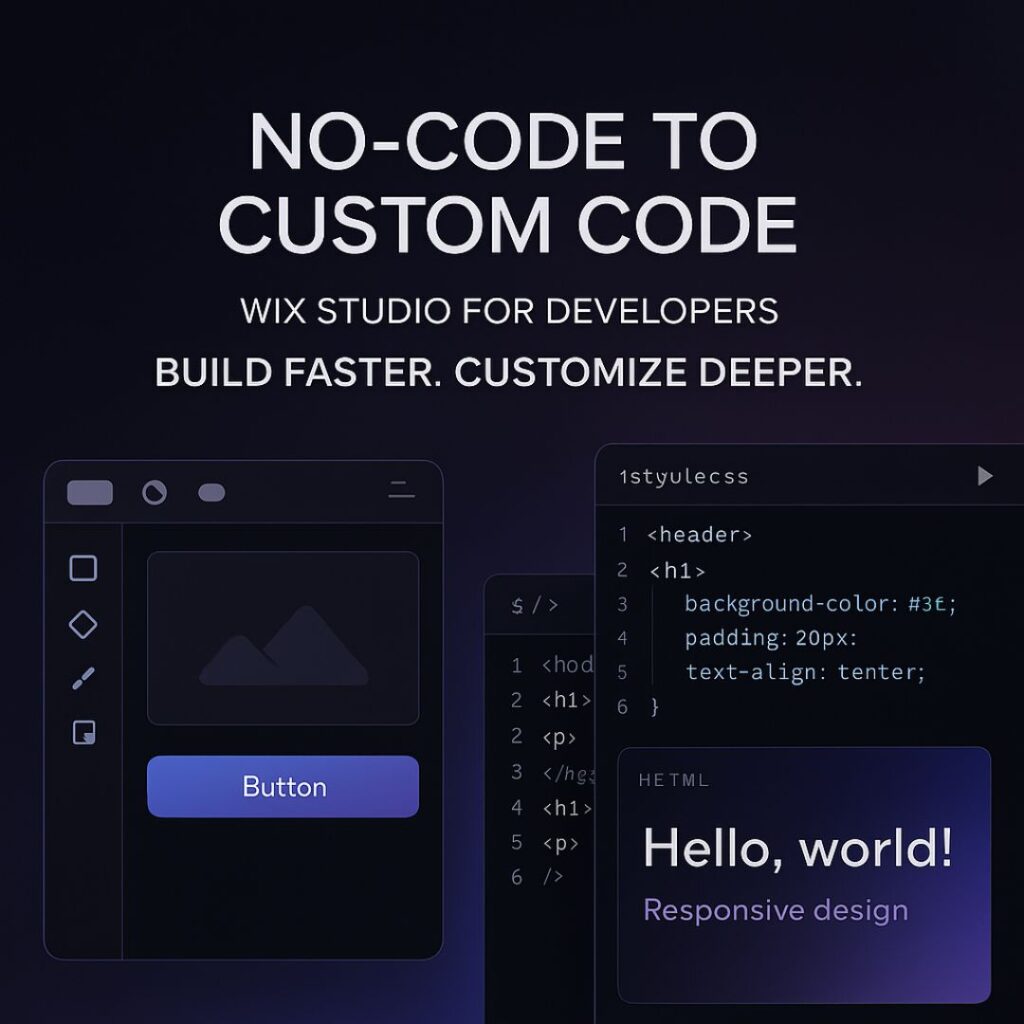
From No-Code to Custom Code: How Developers Can Fully Leverage Wix Studio

From No-Code to Custom Code: How to Leverage Wix Studio as a Developer

Wix Studio has rapidly evolved from a simple, drag-and-drop website builder into a powerful, developer-friendly platform that blends no-code convenience with custom code freedom. In 2025, it stands as one of the most balanced tools for developers who want speed, flexibility, scalability, and design control—all in one place.

Whether you’re a front-end developer, a full-stack developer, or a freelancer working with clients, Wix Studio helps you build websites faster while still allowing deep customization through CSS, JavaScript, APIs, and advanced integrations.

In this blog, we’ll explore how you can take a project from no-code simplicity to full custom-coded power using Wix Studio.

1. Why Wix Studio Is Perfect for Developers

Wix Studio is designed specially for professionals. It offers:

  • Full responsive design tools

  • Ability to add custom CSS

  • No-code animations

  • Integrated Wix CMS

  • Component-based design

  • Reusable layouts

  • Built-in business tools (eCommerce, bookings, events)

  • Developer-friendly workflows through Velo

This makes it ideal for developers who want to build fast without losing control.


2. Start With No-Code: Build Structure, Layout, and Visual Foundation

The no-code tools in Wix Studio are not “basic” — they are powerful and save hours of development time.

What you can do with no-code:

  • Create perfect responsive layouts with built-in breakpoints

  • Use modern sections (sticky, scroll effects, pinned elements)

  • Add animations without writing JS

  • Build mobile, tablet, and desktop variations

  • Use design libraries to keep branding consistent

This allows you to set up the entire visual foundation of the website quickly.

Instead of manually coding everything from scratch, you can focus your energy on the elements that truly need customization.


3. Add Custom CSS for Pixel-Perfect Design Control

Developers can go beyond presets by injecting CSS directly into Wix Studio.

Use cases of custom CSS:

  • Creating unique hover effects

  • Designing complex gradients

  • Customizing buttons, cards, and layouts

  • Adding dark mode styling

  • Fine-tuning animations

  • Improving typography and spacing

  • Overriding default Wix limitations

With CSS, your designs look premium, polished, and professional.


4. Use Velo (Wix’s Developer Tooling) for Advanced Logic

Velo allows you to add JavaScript and custom backend logic.

What you can build using Velo:

  • Dynamic pages pulling data from a CMS

  • Custom forms with validation

  • API integrations (payment gateways, CRMs, AI APIs, etc.)

  • Fetching external data with HTTP functions

  • Building user dashboards

  • Automated workflows and backend jobs

  • Connecting databases or creating your own collections

This is where Wix Studio becomes extremely powerful — it’s not just visual design, it’s full web application development inside one platform.


5. Integrate Third-Party APIs to Extend Functionality

For developers, API integration is essential.
Wix Studio + Velo allows:

  • Payment integrations

  • AI tools

  • Marketing automation

  • CRM tools

  • Custom analytics

  • Product databases

  • Shipping + logistics APIs

  • Social media interactions

You can turn a simple Wix site into a complete web platform using APIs.


6. Build Reusable Components to Speed Up Future Projects

One underrated feature in Wix Studio is Reusable Components.

You can create a design element once and re-use it across multiple pages or multiple client projects.
This saves time and maintains consistency.

Reusable components work especially well for:

  • Navigation bars

  • Hero sections

  • CTA buttons

  • Product cards

  • Forms

  • Footers

For agencies or freelancers, this is a massive productivity booster.


7. A Developer’s Workflow: No-Code → Custom CSS → Velo

Here’s a recommended workflow to maximize your efficiency:

Step 1: Start No-Code

Build the layout visually using Wix Studio’s modern design tools.

Step 2: Add Custom CSS

Enhance the design and create advanced styling.

Step 3: Add Logic Using Velo

Integrate dynamic data, backend logic, and external APIs.

Step 4: Optimize

  • Add SEO tags

  • Optimize images

  • Minify code

  • Improve performance settings

This workflow ensures your website is both beautiful and technically strong.


8. SEO in Wix Studio: How Developers Can Improve Rankings

Wix Studio provides advanced SEO tools:

  • Custom meta tags

  • Structured data markup

  • 301 redirects

  • Page indexing controls

  • Image optimization

  • Automatic caching + CDN

To rank on the first page, make sure you:

  • Add relevant keywords

  • Improve mobile performance

  • Use proper heading structure (H1, H2, H3)

  • Add internal links

  • Write high-quality long-form content

  • Optimize images with ALT tags

Wix Studio already handles speed, caching, and security — so your job is much easier.

FAQ's

1. Is Wix Studio good for developers?

Yes. Wix Studio includes custom CSS, JavaScript, API integrations, dynamic data, and the Velo development environment, making it highly developer-friendly.

2. Can I write custom code in Wix Studio?

Absolutely. You can add custom CSS for design and Velo JavaScript for logic, automation, and advanced functionality.

3. Is Wix Studio better than the classic Wix Editor?

Yes. Wix Studio offers advanced responsive design, custom code capabilities, and professional tools for developers and agencies.

4. Can I integrate APIs in Wix Studio?

Yes. With Velo, you can integrate external APIs, authentication systems, databases, CRMs, and more.

5. Does Wix Studio support dark-theme websites?

Yes. You can build dark-theme layouts using custom CSS, design tokens, gradients, and reusable design libraries.

Final Thoughts and Takeaways

Wix Studio is the perfect bridge between no-code simplicity and full-stack flexibility. Whether you’re a freelancer, a front-end developer, or an agency, you can build fast, customize deeply, and scale easily.

By combining responsive no-code design, custom CSS, Velo JavaScript, and powerful CMS tools, Wix Studio becomes a complete development ecosystem — ready for 2025 and beyond.